


Remove an unwanted object from a photo
Brush over the object you want gone and the AI object remover fills the gap with a natural continuation of the background. The automatic preview shows the result before and after.
Brush over an unwanted object and its shadow, then review the rebuilt background before downloading.
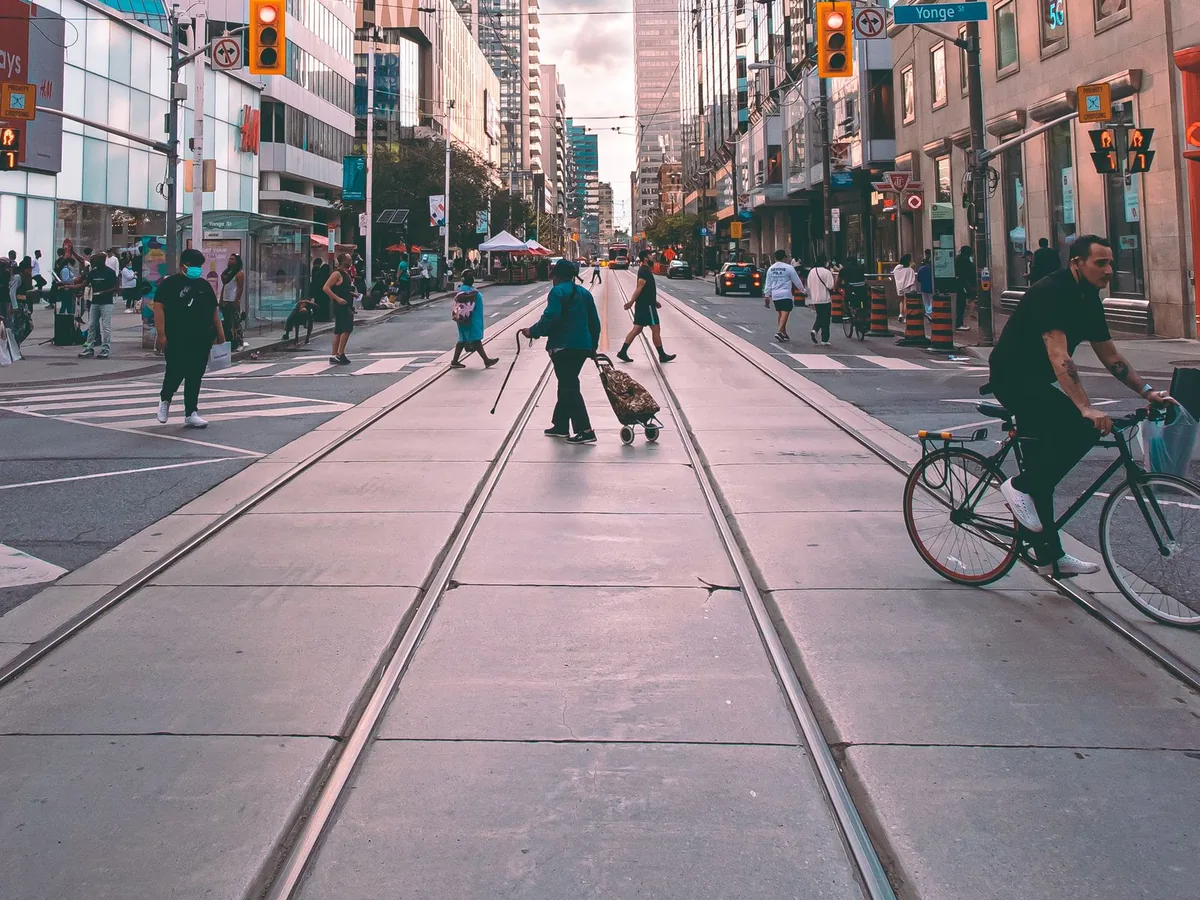
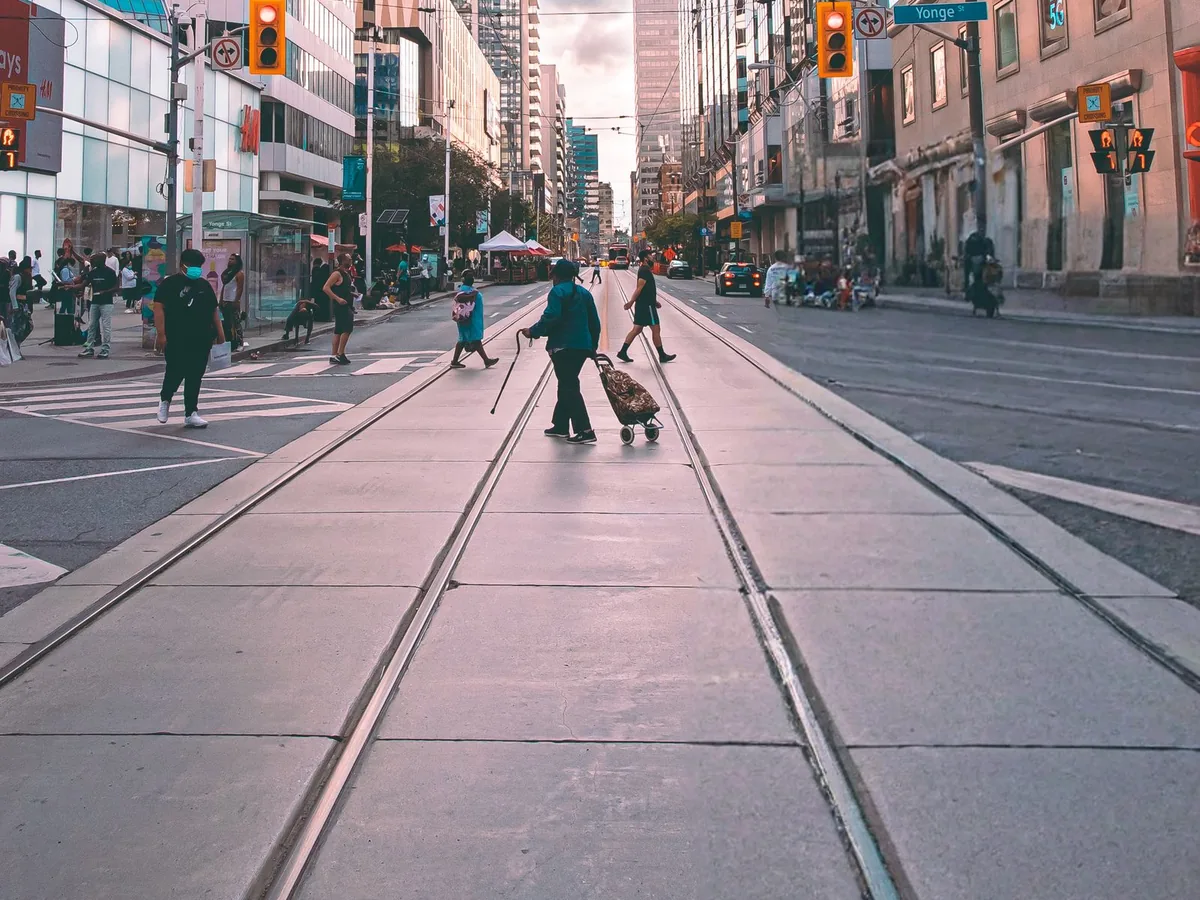
Brush over the object you want gone and the AI object remover fills the gap with a natural continuation of the background. The automatic preview shows the result before and after.
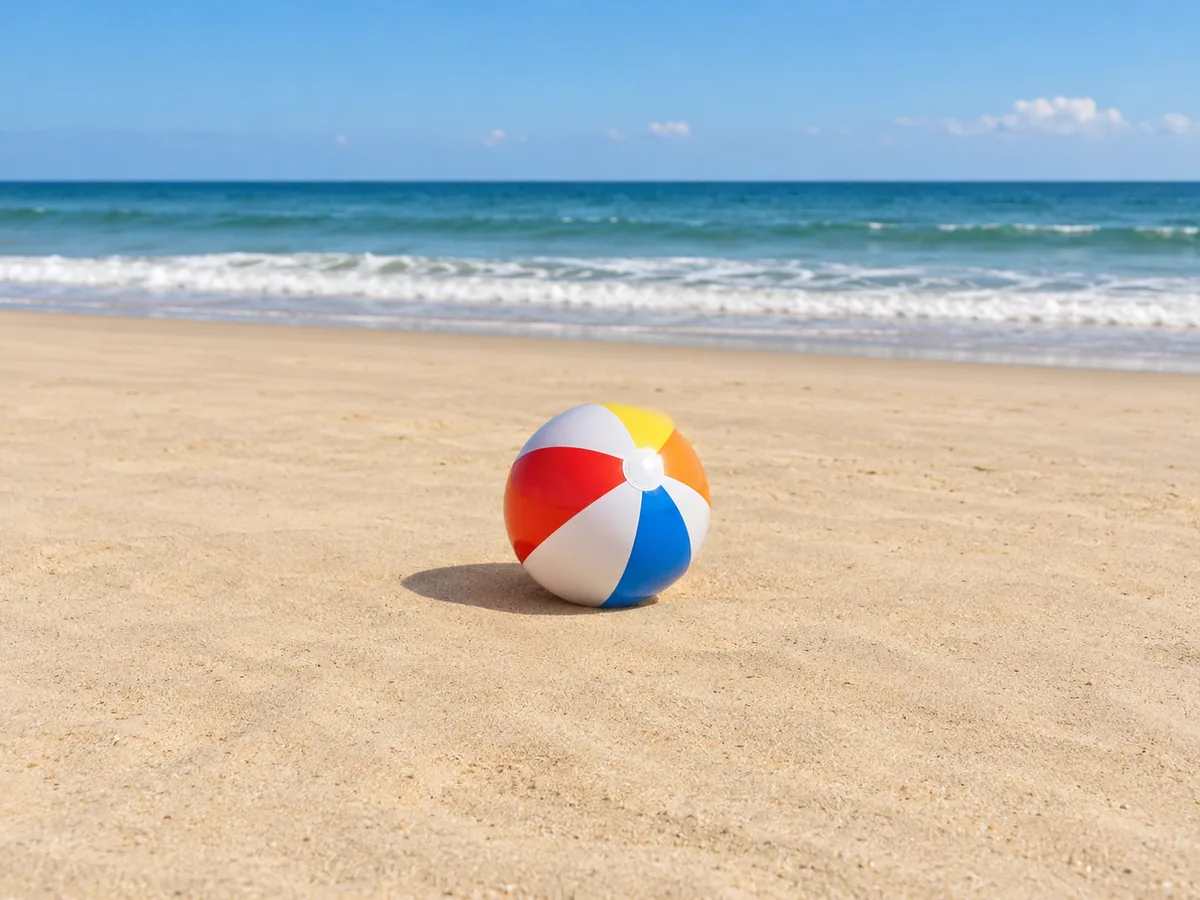

Brush the complete object and its contact shadow. A clean surrounding surface gives the model enough context to continue the sand naturally across the selected area.
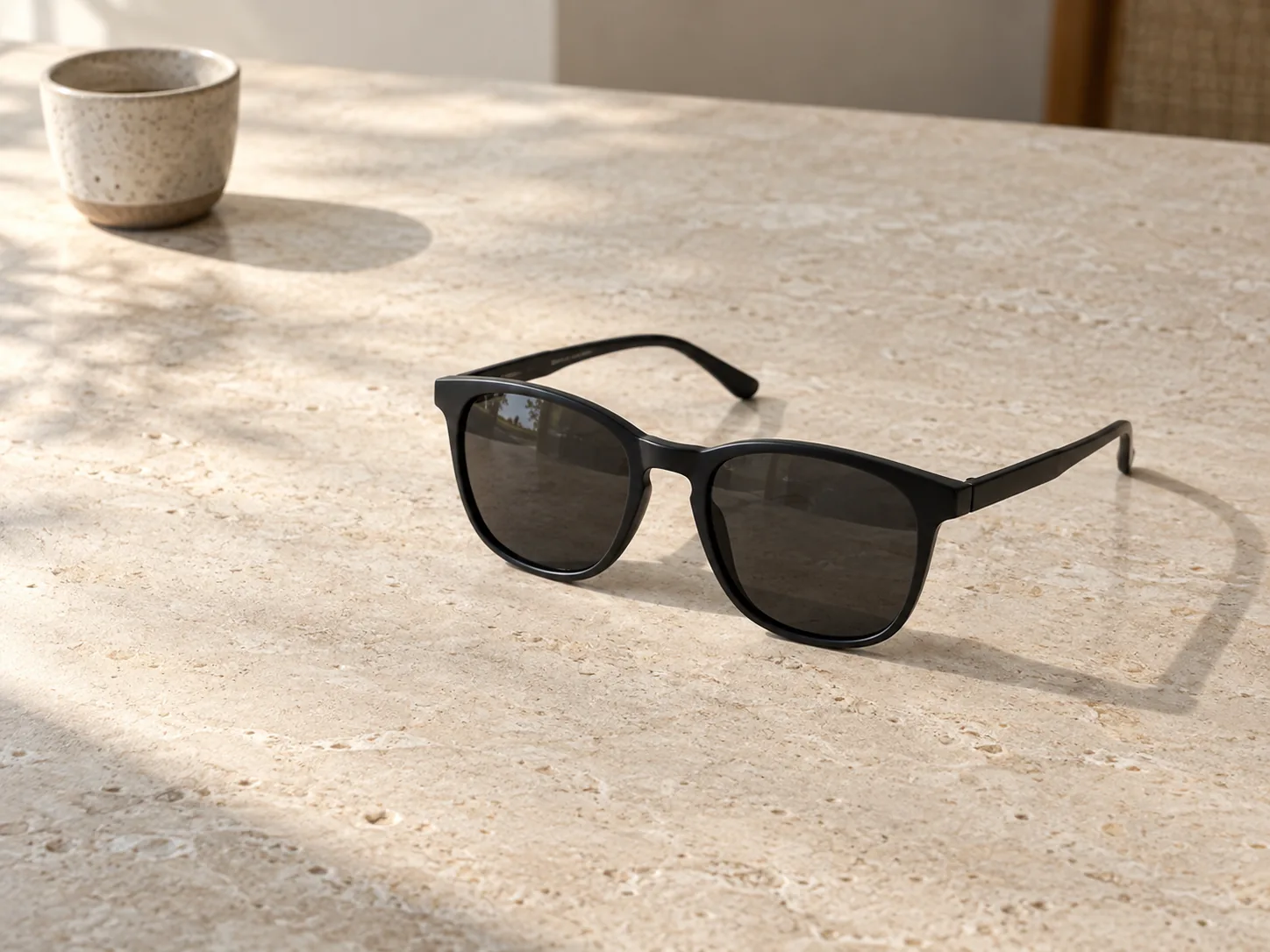
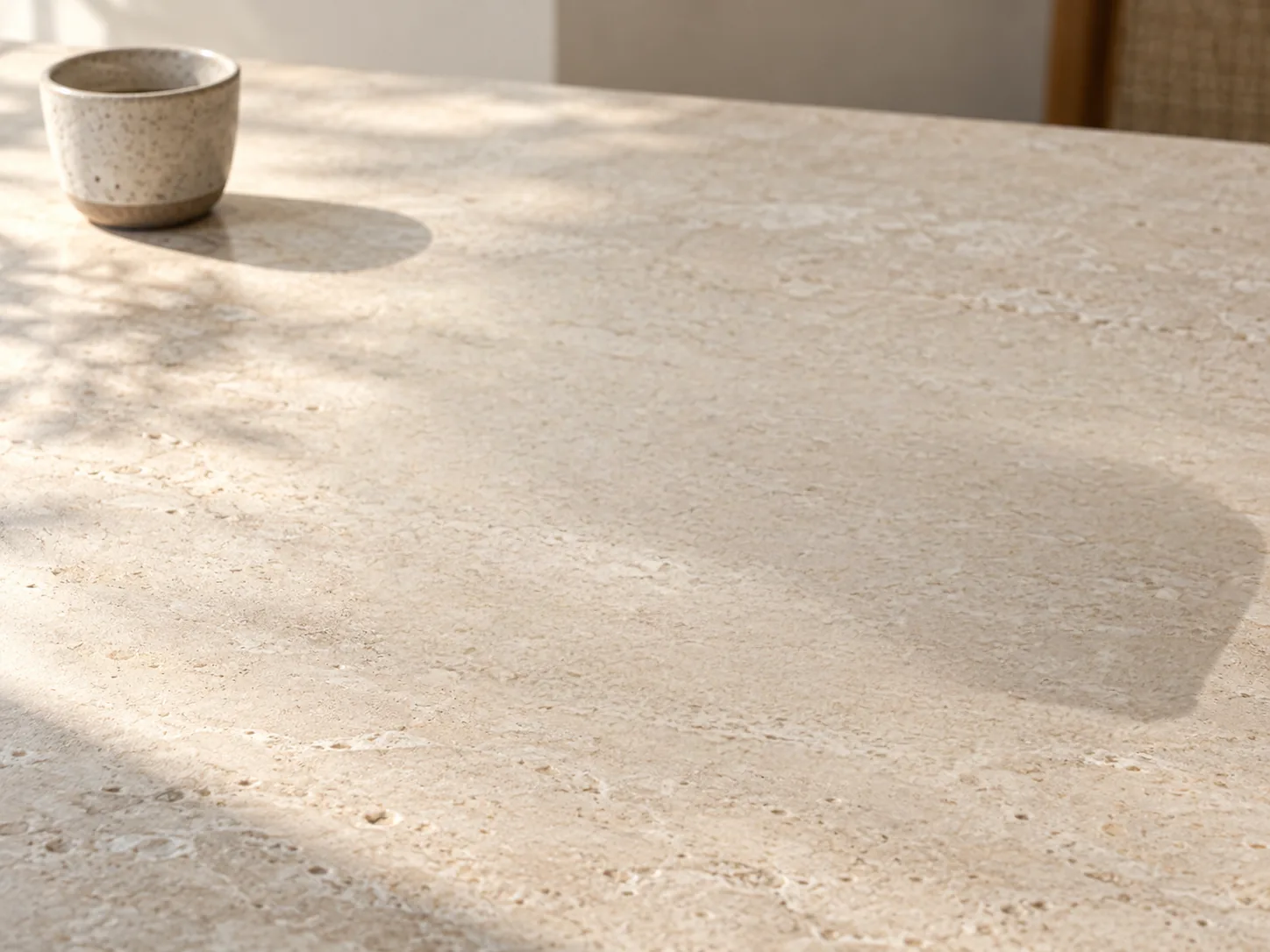
For isolated products, include reflections and the full cast shadow. The model can then continue the surrounding stone texture across the selected area.
Select the object, its contact shadow and any reflection you also want removed. Submit for 8 credits, then inspect the replacement texture and surrounding details. Hidden content is reconstructed, not recovered. New accounts get 16 credits for 2 removals at 8 credits each. Sign-in required. Welcome credits expire after 30 days; this is not a daily allowance.
A selection around the visible object alone can leave a dark patch, reflection or edge behind. Look at where the object touches the ground and whether it appears again in water, glass or a polished surface before painting.
The examples above cover different surfaces: balloons near a portrait, a ball on sand, and sunglasses on stone. Use them to compare what must be selected and which background details need checking afterwards.
RemoveGenie uses the surrounding image to generate a replacement for the selected area. Straight lines, repeated patterns and accurate product colours can change. The homepage uses the same removal capability and price; this page focuses on selecting objects and checking their shadows.
Upload the photo
Choose a JPG, PNG or WebP up to 20 MB. Images are resized to at most 1536 px on the longest edge before processing. Check the downloaded dimensions before using a result for print.
Brush over the object plus margin
Cover the complete outline and any shadow or reflection you want removed. Add a small margin where needed, but keep nearby objects outside the selection. Adjust the brush size and use Refine edges or Undo to correct it.
Download the generative fill
Submit for 8 credits. Processing time varies with image size, queue time and service availability. Refresh this page to reconnect to your existing task, or find the result in My Creations. Download and inspect the completed result.
Objects on sand or grass
Include the contact shadow. Inspect the fill for a smooth patch that stands out from the surrounding texture.
Products on a tabletop
Paint the object and its reflection separately when needed. Check that the rebuilt stone or wood follows the surrounding surface.
Objects across a straight edge
A cable or sign can hide part of a fence, wall or window. Check whether those lines still meet after the edit.
Objects close to a person
Keep faces, hands and clothing outside the selection. Compare those details with the original before using the result.
Look beyond the outline
Inspect the full shadow and reflection before submitting. A wider selection may remove a remnant but also gives the model more background to invent.
Keep useful surrounding detail
Start from a clear source image. Avoid covering nearby texture that could help the model continue the surface.
Review before another attempt
If a remnant remains, revise the selection deliberately. Each new accepted removal costs 8 credits; a quality issue is not the same as a failed task.
Check size before print use
Processing resizes large inputs to at most 1536 px on the longest edge. Check the downloaded dimensions before using the image in a larger design.
Nearby details can change
Selection guides the edit but does not guarantee pixel-identical preservation elsewhere. Compare faces, text and colours with the original.
Fine lines and repeated patterns
Wires, lettering and patterned surfaces may retain fragments or become distorted. Inspect the edited area at full size.
Hidden detail is generated
The result is a plausible replacement, not the original scene behind the object. Keep the original when exact colour or documentary accuracy matters.
AI Object Remover
Choose a removal category and start a new photo cleanup from the homepage.
Remove People from Photo
Review a person selection, carried items and shadows before rebuilding the background.
Remove Watermark from Photo
Brush a watermark on an image you have permission to edit and inspect the replacement texture.