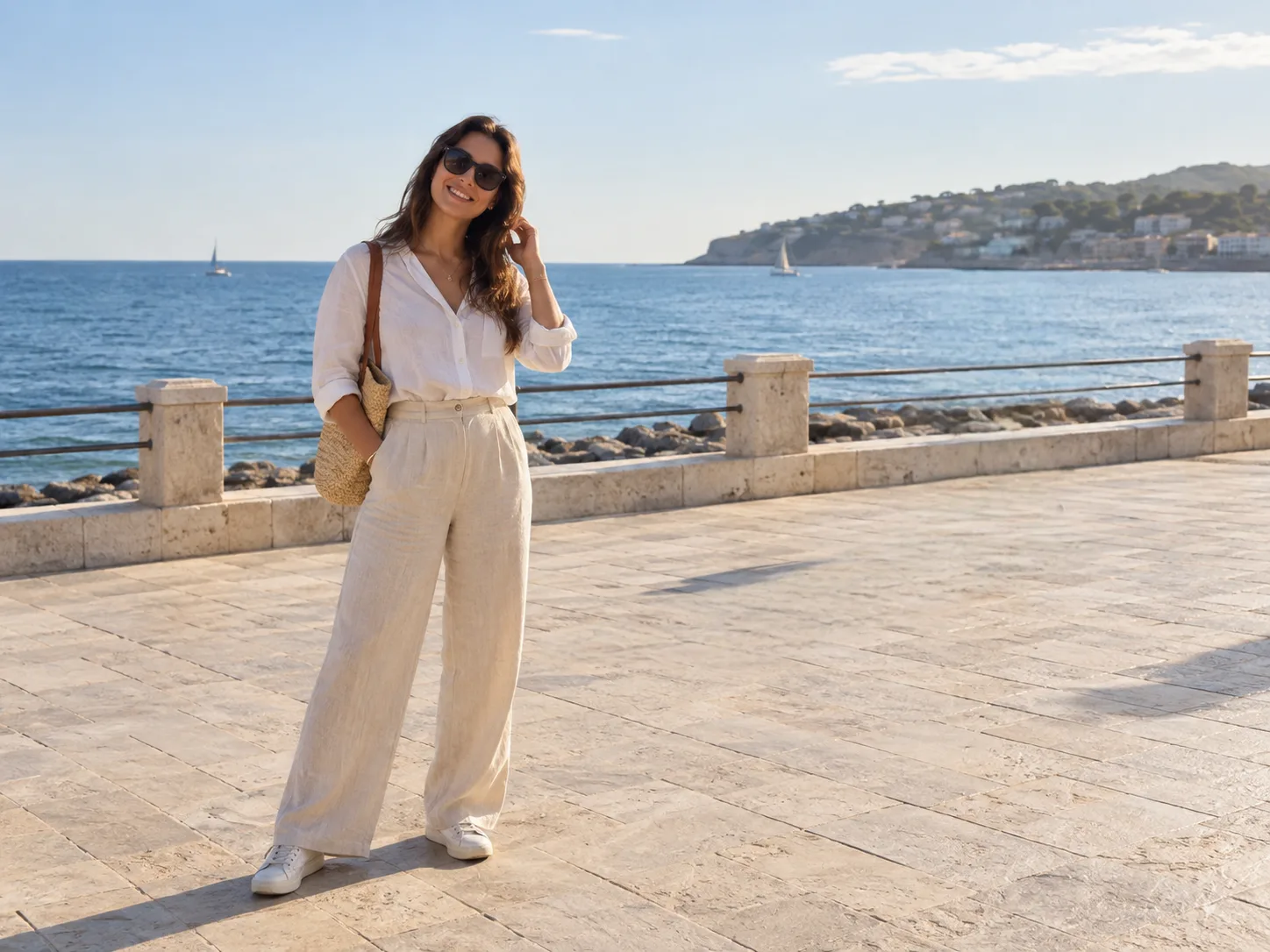
Specialised tool · AI people removal

Remove People from Photos — Erase Strangers & Tourists

Brush over background people, refine the selection near your subject, and review the rebuilt scene before downloading.

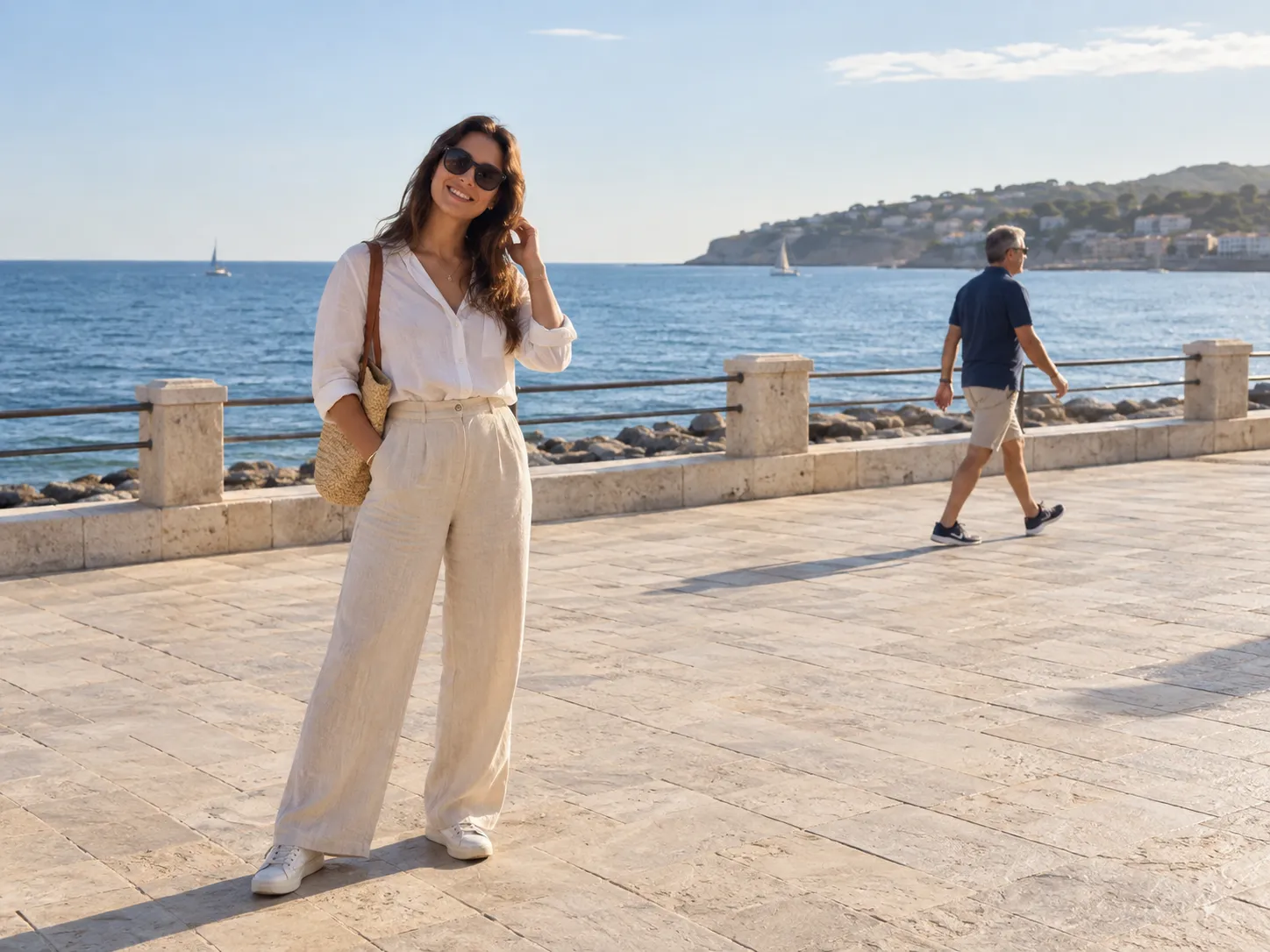
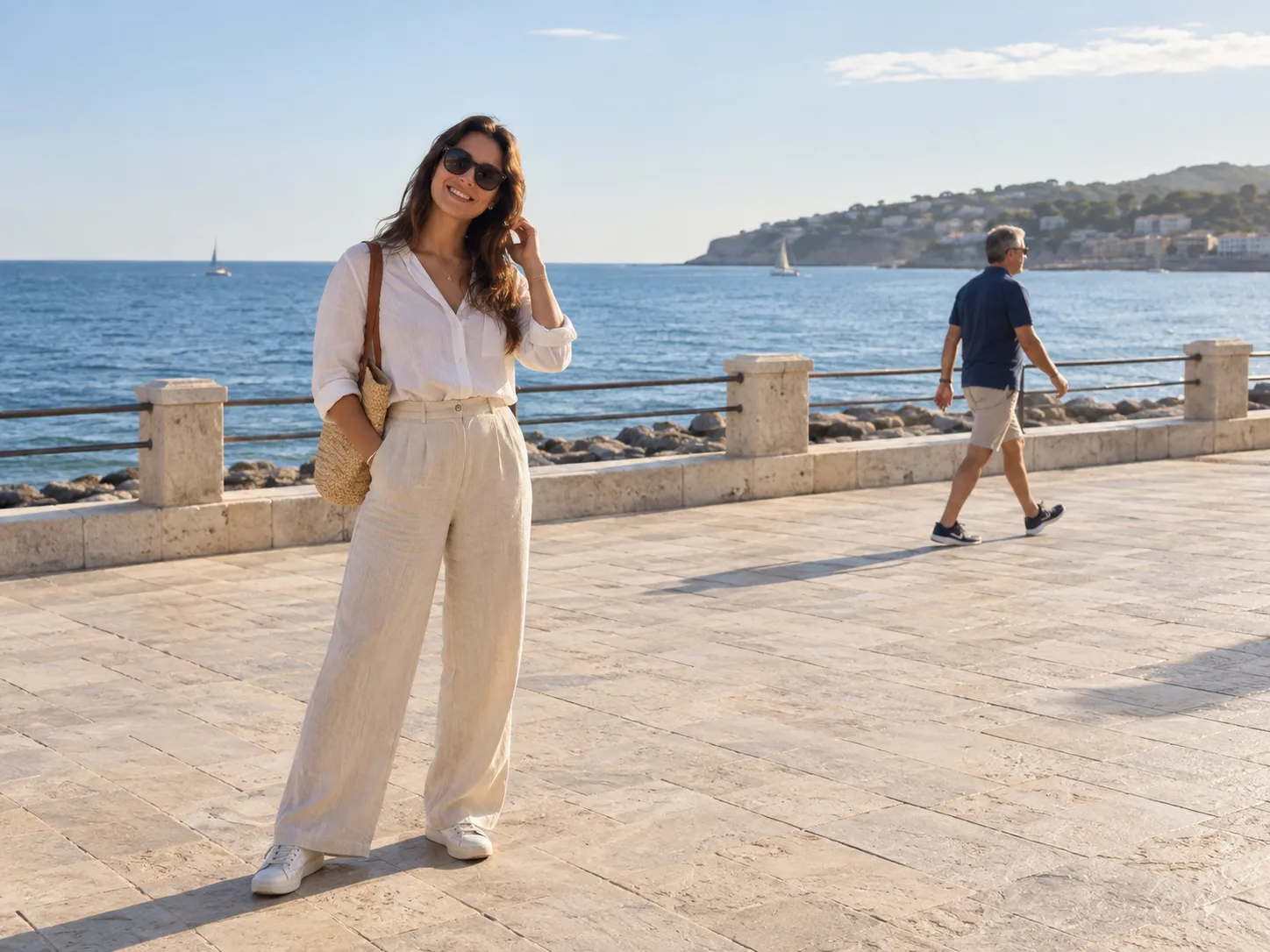
People removed — before
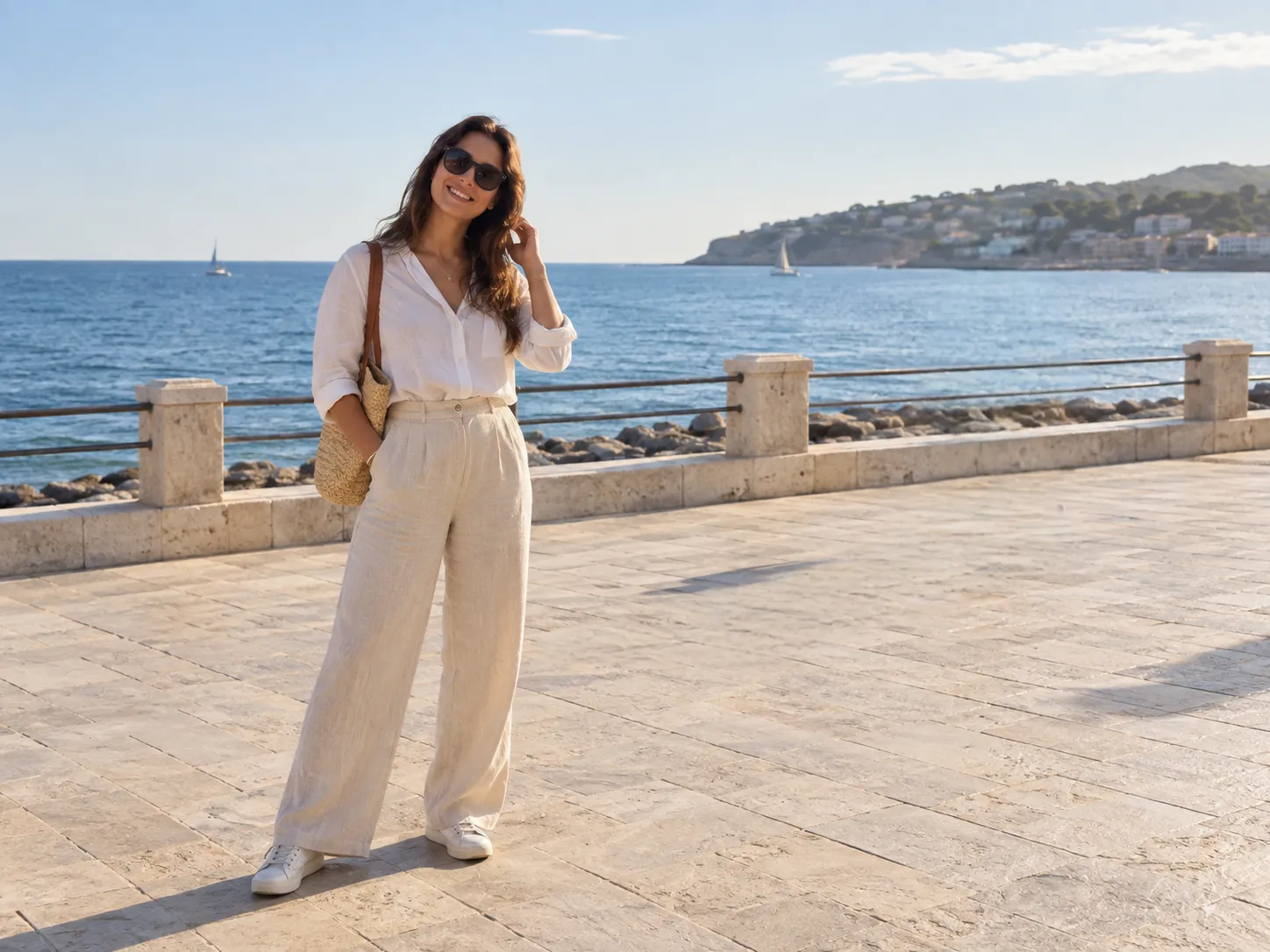
People removed — after

Before / After

People removed

Before
After

Remove people from a photo, keep your subject

Brush the people you want gone and the AI people remover rebuilds the scene behind them — sky, wall, ground, or scenery — while your subject stays sharp. The automatic preview shows the result before and after.
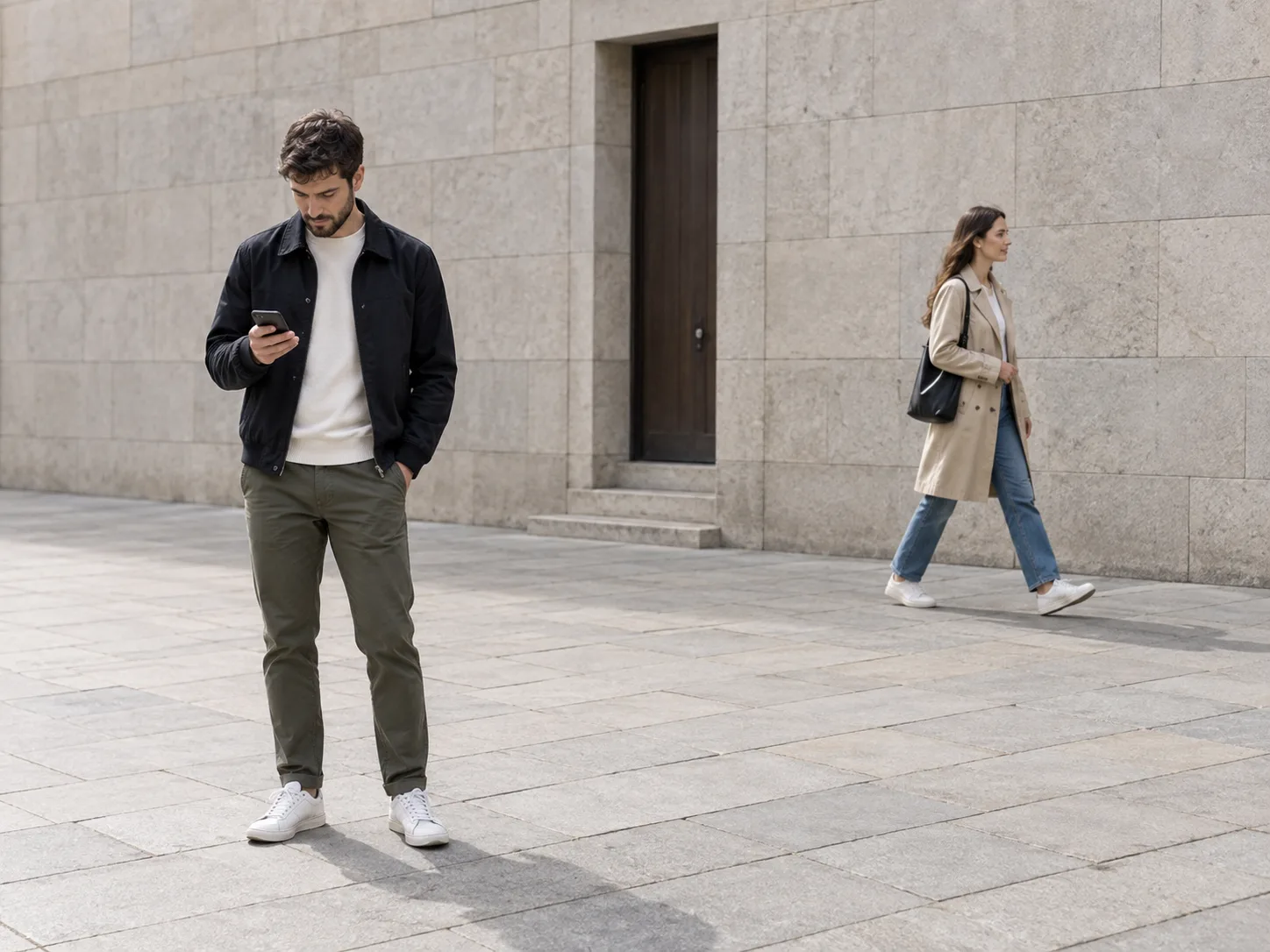
Before
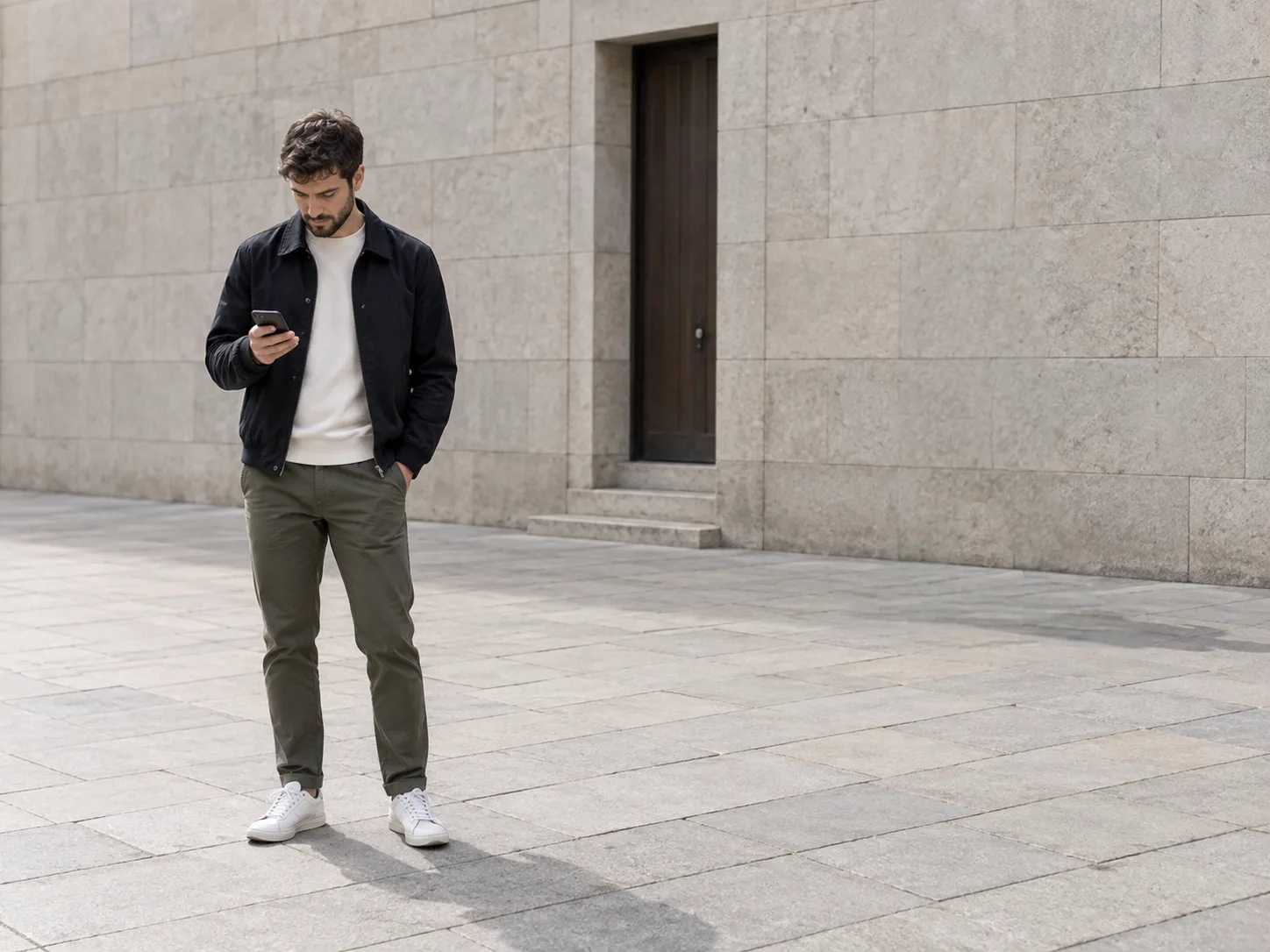
After

Clear a passer-by from a city photo

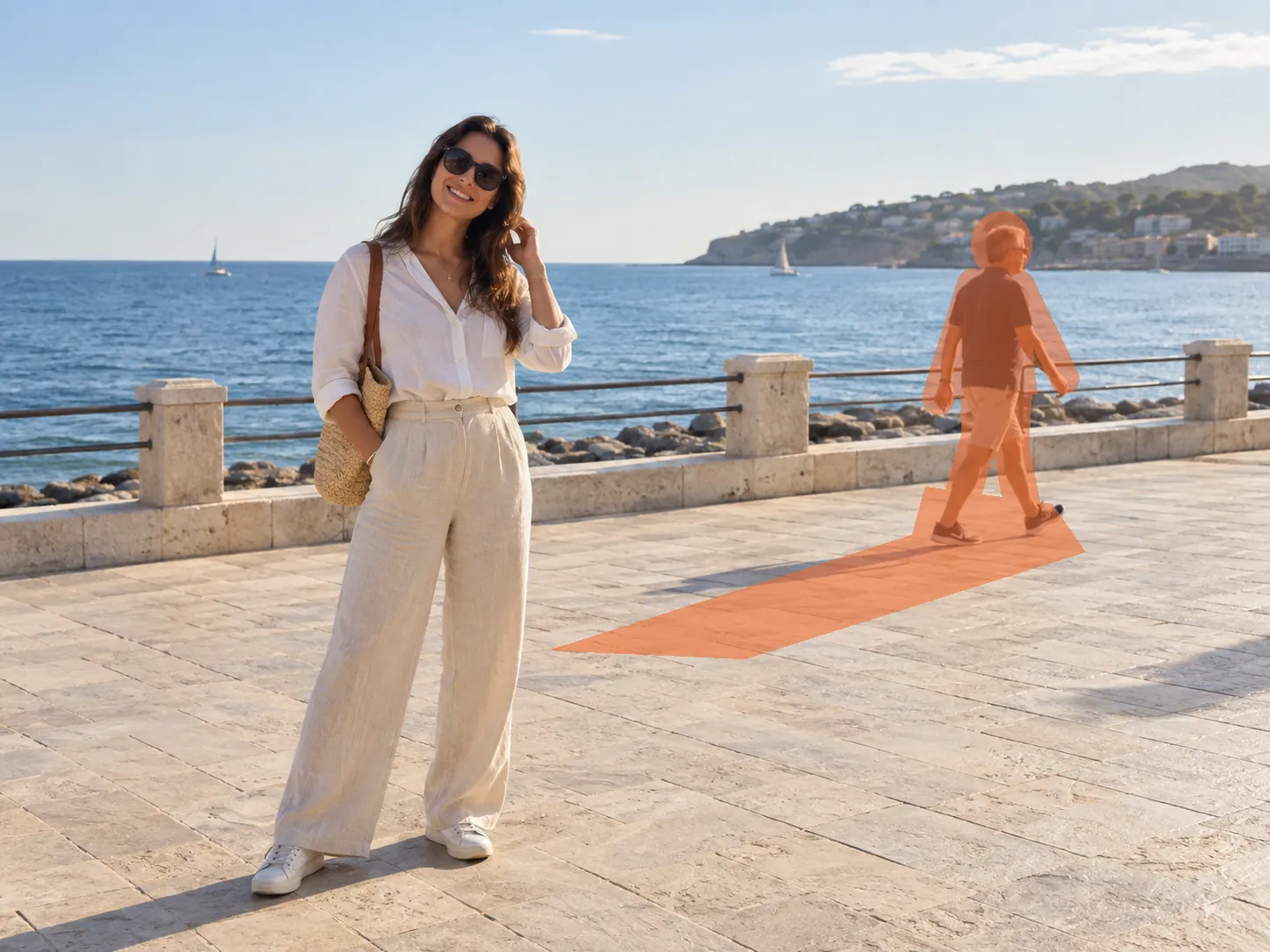
Paint the complete person, anything they are carrying, and their ground shadow; the selected area is rebuilt while your foreground subject stays in place.

In short

Mark the person you want to remove, including their bag and shadow. Check that the selection excludes anyone you want to keep, then submit for 8 credits. Review nearby faces and the rebuilt background before downloading. New accounts get 16 credits for 2 removals at 8 credits each. Sign-in required. Welcome credits expire after 30 days; this is not a daily allowance.

Start with the person you want to keep

Before painting, look at where the unwanted person overlaps your subject. A passer-by against open sand needs a different selection from someone standing beside a face, holding the same railing, or casting a shadow across a dress.

Use the brush to select the unwanted person. Optional AI person refinement can help fit the outline; review that selection rather than assuming it is complete. Add carried objects and shadows, then use Refine edges to exclude nearby details you want to keep.

The model builds a plausible background from the surrounding scene. It cannot reveal the original scenery behind a person, and nearby faces or clothing may change. The coastal and city examples above show what to inspect, not a guarantee for every photo.

How to remove people in 3 steps

Check the person, carried items and shadow as one selection. Keep the subject you want outside the painted area.

  1. 1

    Upload your photo

    Upload a JPG, PNG or WebP (up to 20 MB).

  2. 2

    Brush every unwanted person

    Paint the person, belongings and shadow. Optional AI refinement fits the outline; review it and use Refine edges to exclude nearby people.

  3. 3

    Download the clean scene

    Submit for 8 credits, review the rebuilt area, then download your PNG.

What to check in common people-removal scenes

A passer-by on a beach

Include the feet and ground shadow. After removal, look for a repeated patch of sand or a broken shoreline.

Someone beside a wall

Follow the complete outline, then inspect brick joints, windows and pavement lines in the result.

A person behind your subject

Keep the foreground face, hair and shoulders outside the selection. Check them again after processing.

People near a group portrait

Select only the people you intend to remove. If bodies overlap, expect missing clothing or limbs to require reconstruction.

A passer-by in a property photo

Inspect doorframes, fences and paving after the edit. Removing a person should not misrepresent the property.

Background guests at an event

Work carefully around chairs, railings and the main subject. Keep the original if the edit changes an important detail.

Tips for clean edits

Review the refined outline

AI person refinement is optional. Check hair, hands and feet, and correct any selection that includes a neighbour.

Include the shadow deliberately

A separate shadow or reflection may remain if it is not painted. Include it only when it belongs to the person being removed.

Treat crowds as a harder edit

A large crowd hides more of the scene. Painting a wider area does not guarantee a better result; preserve as much useful background as possible.

Inspect the subject at full size

Compare faces, clothing and shared edges with the original. A background that looks acceptable in a thumbnail can still contain changes nearby.

The honest limits

Choose a JPG, PNG or WebP up to 20 MB. Images are resized to at most 1536 px on the longest edge before processing. Check the downloaded dimensions before using a result for print.

The edit is guided by your mask. Inspect the output for edge remnants, background artifacts, changes to faces and damage to text. Pixel-identical preservation outside the mask is not guaranteed.

When bodies overlap, the missing part of a person cannot be recovered from the original. If preserving a face or an important moment exactly matters, keep the original instead of relying on a reconstructed result.

FAQ

Questions about removing people

Related tools