
AI Object Remover — Remove Unwanted Objects from Photos

Brush over unwanted objects, people or text and review the rebuilt background. New accounts get 16 credits for 2 removals at 8 credits each. Sign-in required. Welcome credits expire after 30 days; this is not a daily allowance.

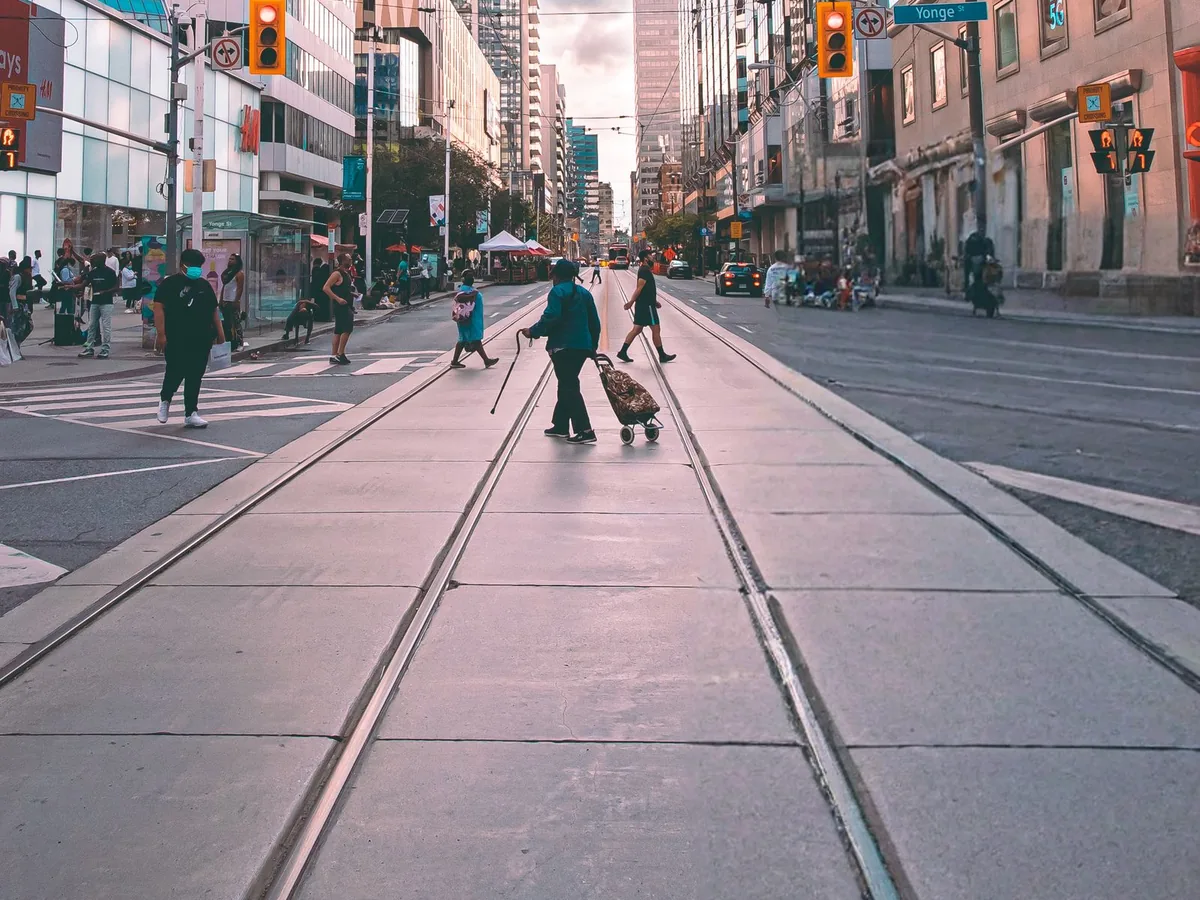
Clear people from the background — before
Clear people from the background — after

Before / After

Clear people from the background

8 credits per removalSign-in requiredResult download
What you can remove

Choose what you want to remove

Each tool uses the same removal workflow, with selection advice and examples for a different kind of edit.

background people remover

Background People Remover

Use the people tool when a passer-by distracts from your subject. Review the person selection near faces and clothing, then inspect both the rebuilt background and the people you kept.

  • Review the person outline
  • Include bags and ground shadows
  • Check nearby faces after removal

Try Background People Remover →
ai object remover

AI Object Remover

A ball on sand and a pair of glasses on a tabletop need different selections. The object guide shows what to include around the target and where texture, straight lines or reflections may need closer inspection.

  • Cover the full object outline
  • Inspect contact shadows and reflections
  • Compare the surrounding texture
Try AI Object Remover →
remove text from image

Remove Text from Image

Remove a short caption or date stamp by selecting the letters and their outlines. AI generates replacement pixels from nearby context; it cannot recover the original detail hidden behind the text.

  • Select lettering and outlines
  • Keep wanted text outside the selection
  • Check structured backgrounds carefully
Try Remove Text from Image →
remove watermark from photo

Remove Watermark from Photo

Mark the watermark and inspect the surrounding detail after processing. Repeated or transparent marks across a large area are harder to replace without changing the underlying image.

  • Include faint edges of the mark
  • Check lines and texture underneath
  • Edit only images you have permission to use
Try Remove Watermark from Photo →
magic eraser

Magic Eraser

Start with a small distraction such as the beach ball in the example. Include its shadow, then compare the replacement area with the rest of the scene before downloading.

  • Mark one distraction clearly
  • Check shadows before submitting
  • Review the result at full size
Try Magic Eraser →
sticker remover

Sticker & Emoji Remover

A sticker covers information that the photo no longer contains. The model can invent a replacement, but it cannot reveal a hidden face, text or other original detail. Keep the source when those details matter.

  • Select the overlay and its border
  • Expect reconstruction, not recovery
  • Check faces and nearby text
Try Sticker & Emoji Remover →
How it works

Upload. Brush. Remove.

  1. 1

    Upload a photo

    Choose a JPG, PNG or WebP up to 20 MB. Images are resized to at most 1536 px on the longest edge before processing. Check the downloaded dimensions before using a result for print.

  2. 2

    Brush the object

    Paint the area you want replaced. Include shadows or reflections, then use Undo or Refine edges to correct the selection.

  3. 3

    Download the result

    Sign in, submit for 8 credits, then inspect and download the completed result.

Why RemoveGenie

Clear pricing and a simple workflow.

8 credits per removal

The cost is shown before you submit. Confirmed failed tasks receive an automatic refund.

Sign in to remove

New accounts get 16 credits for 2 removals at 8 credits each. Sign-in required. Welcome credits expire after 30 days; this is not a daily allowance.

Review before downloading

Compare the rebuilt area with the original. Check nearby faces, text and background patterns at full size.

Results in your account

Source images, masks and results are stored to process tasks and make results available in your account. The processing service receives the images needed for your request. We do not promise automatic deletion after each request or after 24 hours.

Honest limitations

When RemoveGenie isn't the right tool

Selection and background detail affect the result. These situations need extra care before you spend credits.

1

Large selected areas

Removing a large part of the frame leaves less surrounding context. The replacement may contain invented or repeated detail.

2

Overlapping subjects

A person or object touching another subject can leave missing edges or change details you wanted to keep.

3

Dense text and fine patterns

Removing many words or editing a patterned surface can distort the background. Check lettering, lines and small repeated details.

FAQ

The stuff people ask.